Introduction to Scripting withFormCalc
A single change of state or form-filler action may trigger multiple events. For example, tabbing from the current field to the next field triggers both the exit event for the current field and the enter event for the next field. If the current and next fields are in different subforms, a total of four events are triggered: exit events for the current field and subform, and enter events for the next field and subform. In general, each of the different categories of form events follows a predictable ordering.
Some of the important events are:
- INITIALIZE
Executes after data binding is complete. A separate event is generated for each instance of the subform in the form model.
It can be used, for example, to change the values of empty fields or fields in general. - CALCULATE
Fields in the template may have calculation scripts attached to them. A calculation script returns a value that becomes the new value of the field.Calculations are performed even for fields that were supplied with data in the course of data binding. The calculation may thereby update the supplied value.
- VALIDATE
Fields in the template may have validation scripts attached to them. A validation script returns a status value which, if false, causes actions such as an error message. - FORM:READY
Scripts attached to this event can execute confidently with the knowledge that data binding has successfully concluded and all data has been validated. - LAYOUT:READY
When layout ready is reached, the pagination and page-breaks have already been processed.Changes that influence the size and space consumption of body pages with floating dynamic content should not be coded here. At this point in processing, the layout is ready!
This event can be used to change colors, calculate totals in footer rows, and so on.
Adobe LiveCycle Designer distinguishes event categories:
- Process events
Process events initiate automatically as the result of an internal process or action related to a form or objects on a form. These events initiate immediately following significant form changes, for example, after a form design is merged with data or after the form pagination process finishes. Process events also initiate immediately after interactive events initiate. For example, immediately after any interactive event initiates, the calculate event initiates, followed by the validate event. This type of event initiates automatically as the result of an internal process or action related to objects on a form. - Interactive events
This type of event initiates as a direct result of form-filler actions. For example, if a user moves the pointer over a field on a form, the mouseEnter event initiates in response to the action. - Application events
This type of event initiates as a result of the actions performed by either a client application or a server application. For example, you can create a calculation or script to perform a task immediately after the form is saved by using the postPrint event.
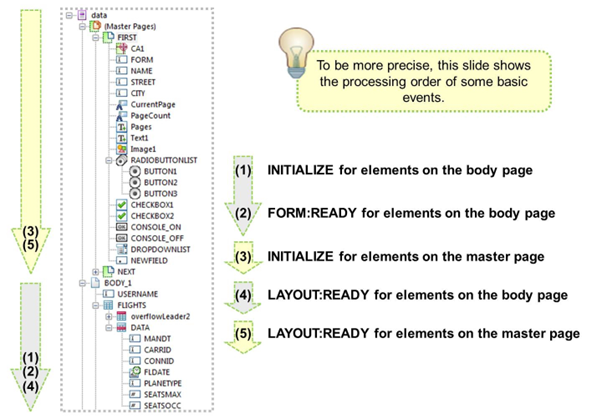
Processing order of INITIALIZE, FORM:READY, and LAYOUT:READY:
- INITIALIZE
INITIALIZE can be used, for example, to prefill empty fields or initialize helping variables used in calculations. - FORM:READY
To understand this event, simply try the PRESENCE = “hidden” script for an element inside the body page.Hiding a field at form:ready will leave no gap, because the final layout has not been rendered yet. Coding this scripting at layout:ready will leave a gap because the dimension of the floating content of the body is not touched anymore.